
Open the original frame and compare it with the shape you plan to publish. A preview styled to cover a rectangle may hide edges when its aspect ratio changes. MDN documents that behavior for web images. Your saved file and the card displaying it can therefore show different parts of the same original.
Pick the important detail before cropping
Imagine a non-explicit still life with a yellow flower pot near the left edge and a small sign on the right. The original is wide. A square card may trim both sides. Decide whether the sign is part of the intended image, then test a square crop before placing the file in that card.
If both objects need to be visible, consider repositioning the crop or showing the whole frame with extra space. Adobe’s crop documentation describes aspect-ratio choices and preserving the original crop area when the tool allows. Work on a copy if you want a simple way to retain the source.
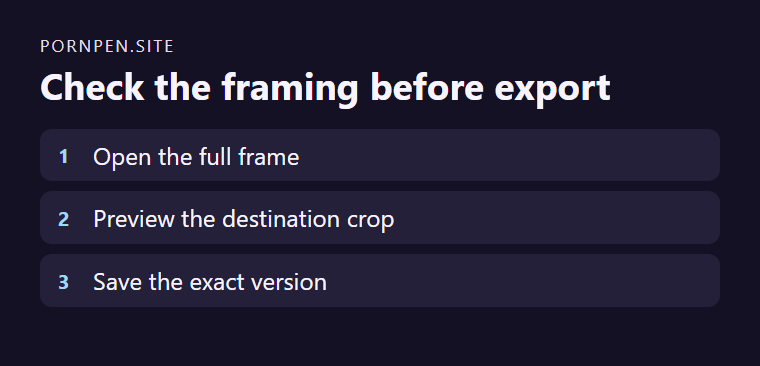
Verify the actual export
Open the exported copy without the preview layout. Check the sign, flower pot and any other detail the reader needs. Use a filename that identifies its shape so a different crop does not get substituted by mistake.
Try the exact derivative in the intended view. If a thumbnail still crops the image, check that view’s framing before deleting or recreating the original. A clear crop record saves time when you need both a square card and a wide version.